
Shopify Site Speed Optimization Guide

When we talk about Shopify site speed optimization, we're really talking about making your online store load faster for your visitors. It’s a mix of smart tactics like compressing images, tidying up the code from all those apps we love to install, and making the most of Shopify’s built-in performance tools. A zippy store doesn't just make for happy customers; it also gives you a nice boost in search engine rankings.
Why Store Speed Is Your Silent Salesperson
Let's cut through the technical noise and get straight to what matters: your revenue. Your Shopify store's speed isn't just a number on a report; it's a tireless employee working around the clock to either close sales or drive them away. In e-commerce, every single millisecond counts, and the line connecting load time to your bank account is shockingly direct.
Think about it from a shopper's perspective. When they click on a product and the page snaps into view, you’ve built instant trust and created a smooth, easy path to the checkout. On the flip side, a slow, clunky site plants seeds of doubt and frustration. That hesitation is often all it takes for a potential customer to click away and never come back.
The Real Cost of a Slow Store
The financial hit from a sluggish website isn't just a theory—it's real, and you can measure it. Even a tiny delay can snowball into a massive drop in conversions.
The data is pretty clear: a mere 1-second delay in page load time can tank conversions by up to 7%. And on mobile, where patience is even thinner, 53% of visitors will bail if a site takes more than three seconds to load. You can dig into more data on how speed impacts Shopify stores to see just how high the stakes are.
The Financial Impact of Page Load Delays
This table breaks down the potential monthly revenue loss for stores of different sizes, based on that 7% conversion drop from a single second of delay.
As you can see, those small delays add up to serious money over time. It's why the most successful brands treat speed optimization as an ongoing commitment, not a one-and-done task. They know a fast site is their secret weapon.
First Impressions and Google's Core Web Vitals
Your store's speed is also a major signal to search engines like Google about your site's quality. Google's Core Web Vitals are specific metrics designed to measure the actual experience a person has on your page, focusing on loading, interactivity, and visual stability.
- Largest Contentful Paint (LCP): This measures how long it takes for the most important content on your page (like that hero image or product gallery) to load. The goal is 2.5 seconds or faster.
- Interaction to Next Paint (INP): This new metric gauges how quickly your page responds when someone clicks, taps, or types. A good INP score is anything under 200 milliseconds.
- Cumulative Layout Shift (CLS): This tracks visual stability, making sure buttons and images don't jump around while the page is loading. You want a CLS score of less than 0.1.
A poor score in these areas doesn't just annoy your visitors. It actively tells Google your site provides a frustrating experience, which can seriously hurt your search rankings. A faster competitor could easily jump ahead of you, even with an inferior product.
At the end of the day, optimizing your Shopify store is about more than just pleasing an algorithm. It's about respecting your customer's time and removing every possible obstacle between them and the "buy" button. In the next sections, we’ll get into the practical, no-fluff strategies you can use to find the bottlenecks and turn your store into a high-speed selling machine.
Finding What's Actually Slowing Your Store Down
You can't fix a problem you can't see, and when it comes to Shopify site speed optimization, guesswork is your worst enemy. Before you start randomly deleting apps or compressing images, you need to play detective. The first step is to pinpoint exactly what’s causing the delays, and thankfully, there are some powerful free tools that can do the heavy lifting for you.
Running your store through a diagnostic tool isn't just about getting a score; it's about understanding the story behind that number. These reports reveal the hidden culprits that are hurting your customer experience and, ultimately, your sales. It's time to put on your detective hat.
Your Go-To Diagnostic Tools
The two most trusted names in the game are Google PageSpeed Insights and GTmetrix. Both are fantastic, but they present data a little differently. I always recommend running your site through both to get a more complete picture of your performance.
For example, this bar chart shows a few key Shopify speed metrics compared against their recommended benchmarks.
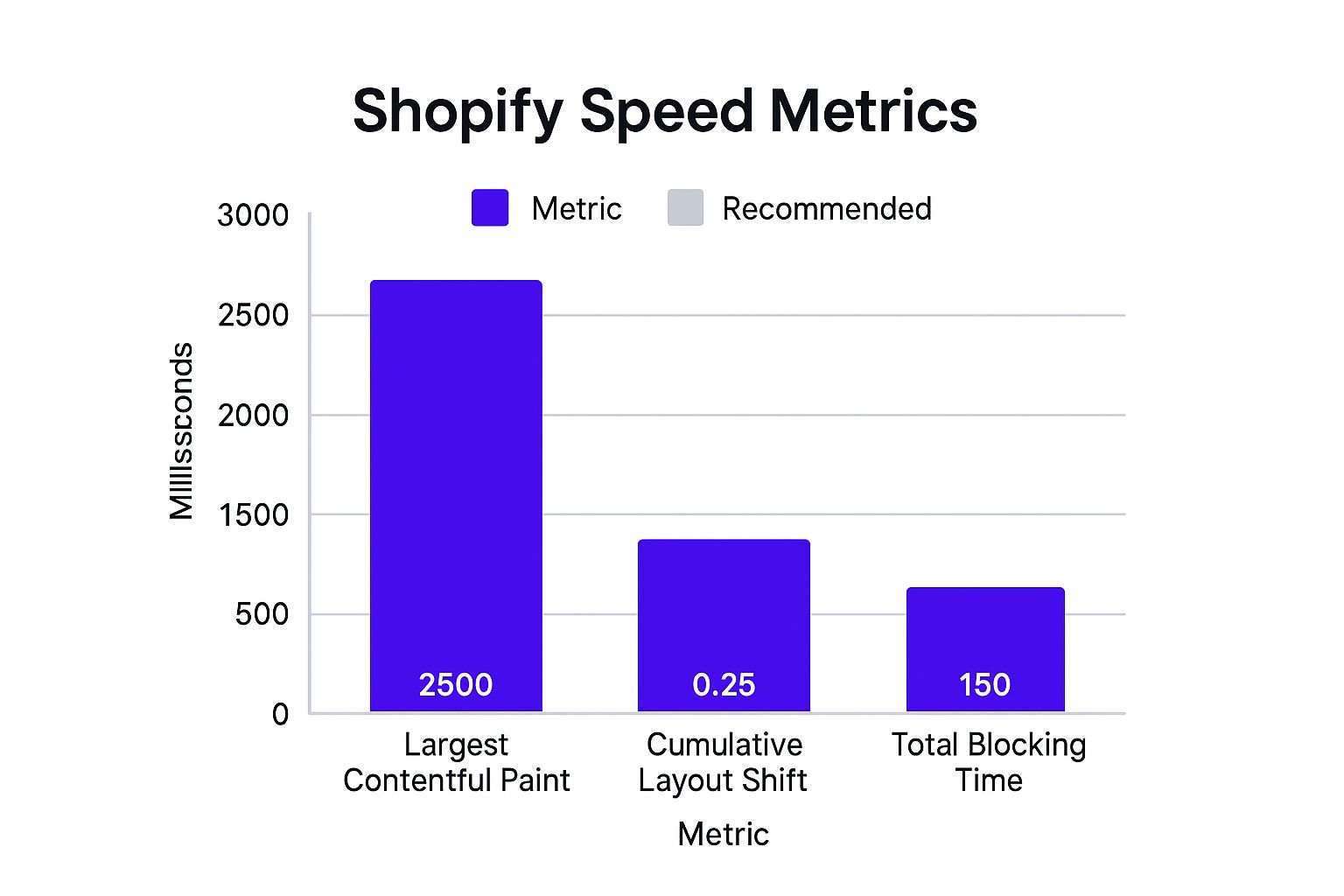
This data shows that while Total Blocking Time is looking good, both Largest Contentful Paint and Cumulative Layout Shift are over the line. Right away, we know where to focus our efforts.
When you run a test, don't obsess over hitting a perfect 100/100 score. Instead, pay close attention to the actionable recommendations these tools provide. They’ll point you toward specific issues, like oversized images or clunky scripts, that you can fix directly.
Decoding the Metrics That Matter
Your speed report will be packed with acronyms and technical terms, but you really only need to focus on a few key metrics to get a solid read on your user experience. These are directly related to Google's Core Web Vitals, which also play a role in your search rankings.
- Largest Contentful Paint (LCP): This is how long it takes for the biggest, most important element on the screen (usually a hero image or product photo) to load. A slow LCP means your customer is staring at a blank or half-finished page, which is a one-way ticket to them hitting the "back" button.
- Cumulative Layout Shift (CLS): Ever tried to click a button, only for an ad or image to pop in and push it down the page? That’s layout shift. A high CLS score means your site feels unstable and frustrating to use.
- Total Blocking Time (TBT): This measures the total time your page was "blocked," preventing a user from actually interacting with it. High TBT is often caused by heavy JavaScript from apps or custom themes, leaving customers unable to click, scroll, or type.
Think of it this way: a slow LCP is like an empty store, a high CLS is like a disorganized one, and a high TBT is like the front doors are locked. Understanding these three metrics gives you a direct window into what your customers are experiencing.
Using the Waterfall Chart to Find the Culprits
This is where you'll find your smoking gun. The "waterfall chart," a feature in tools like GTmetrix, shows you every single file your browser has to load to display your page, in the exact order it loads them. Look for the longest bars—those are your biggest problems.
Common culprits you’ll spot in a waterfall chart include:
- Unoptimized Images: Are your
.pngor.jpgfiles hanging out at the top of the list with long load times? That's a huge red flag that they need to be compressed or converted to a modern format like WebP. - Third-Party Apps: You might see scripts from a review app, a popup tool, or a tracking service causing major delays. This is critical information for when we audit your apps later on.
- Custom Fonts or Videos: That fancy custom font or embedded video might look great, but the waterfall chart will show you the true cost in load time.
By analyzing these reports, you move from guessing to knowing. You can build a targeted action plan based on real data, ensuring your efforts have the biggest possible impact. For a deeper dive into general web performance principles, this guide to website performance optimization is an excellent resource.
Now, let's get our hands dirty and start tackling these common bottlenecks.
Optimizing Images and Themes for Instant Loading
Now that you've pinpointed what's bogging down your store, it's time to roll up your sleeves. The quickest and most impactful wins in Shopify site speed optimization almost always come from two places: your images and your theme.
Think of these as the low-hanging fruit. Making smart changes here can deliver a noticeable boost in speed without needing to tear your whole site apart.
Your product photos and banners are everything—they sell your products. But they can also be incredibly heavy, forcing customers to stare at a loading screen while massive files download. The goal isn't to make your images look bad; it's about striking that perfect balance between stunning visuals and lightning-fast pages.
Mastering Shopify Image Optimization
If you take away one thing, let it be this: never upload an image directly from your camera or designer. Those files are often several megabytes, which is an absolute killer for web performance. Your mission is to shrink the file size as much as possible without anyone noticing a drop in quality.
Getting this right comes down to three key things:
Compression: This is where you squeeze the file size down. You can use fantastic Shopify apps like TinyIMG or Crush.pics to automatically handle this for you. They use smart algorithms to cut out unneeded data, often slashing file sizes by 50% or more with no visible difference.
Sizing: Before you even think about uploading, resize your images to the exact dimensions they'll appear on your site. If your product photos show up in a 600-pixel-wide box, there’s zero reason to upload a 3000-pixel-wide image. Use a free tool like Canva or your computer's built-in editor to get this done first.
Next-Gen Formats: It’s time to move beyond old-school JPEGs and PNGs. Modern formats like WebP are a game-changer, offering much better compression at a higher quality. Shopify helps by automatically converting images to WebP for browsers that support it, but using an optimization app ensures this is done consistently and efficiently.
A common mistake is just installing an app and calling it a day. For the absolute best results, resize your images on your computer first. Then, upload them and let an app do the final compression and format conversion. This two-step process makes a huge difference.
Image Optimization Techniques Compared
To help you decide which approach is right for your store, here’s a quick rundown of the most common image optimization methods. Each has its pros and cons, so it's all about finding the right balance for your specific needs.
Ultimately, a combination of resizing, smart lossy compression, and converting to next-gen formats like WebP will give you the best of all worlds: crisp, beautiful images that load in a snap.
Choosing a Lightweight and Modern Theme
Your Shopify theme is the foundation of your entire store. It doesn't just control the look and feel; it dictates performance. A bloated, poorly coded theme can sabotage your speed from day one, no matter what else you do.
When you're theme shopping, think speed first. All those flashy animations and niche features you'll never use just add weight. Look for themes from trusted developers in the Shopify Theme Store, especially those built for "Online Store 2.0." These newer themes are designed for performance with cleaner code.
A speedy theme gives you a strong head start. Shopify's own free theme, Dawn, is a fantastic performance benchmark. If you're eyeing a paid theme, do yourself a favor and run its demo store through Google PageSpeed Insights before you buy. If the developer's own showcase is slow, you can bet yours will be too.
Cleaning Up Unused Code and Scripts
Over time, your theme's code can get messy. Every time you install and uninstall an app, little bits of code can get left behind. This "code bloat"—usually old CSS and JavaScript files—is dead weight that gets loaded on every single page, slowing things down for no reason.
Tidying this up is a more advanced step, but it’s vital for keeping your store fast in the long run.
Here’s how you can tackle it:
Do a Manual Sweep: If you're comfortable digging into code, pop open your
theme.liquidfile and look for<script>tags from apps you've uninstalled. They're often clearly named. Just be sure to create a backup of your theme before you delete anything!Let an App Do the Work: For those who'd rather not touch the code, many speed optimization apps have features that sniff out and remove unused JavaScript and CSS automatically. It's the safer bet.
Embrace Lazy Loading: This clever technique stops off-screen images and videos from loading until a visitor actually scrolls down to them. It dramatically improves that initial "time to interactive." Many modern themes have this built-in, but an app can add it if yours doesn't.
If you'd like to dive deeper, there are some great general website loading speed optimization strategies that apply beyond just Shopify. By focusing on your images and theme, you’re hitting the biggest performance roadblocks head-on and creating a much better experience for your customers.
Conducting a Smart App and Script Audit

Think of every app you install on your Shopify store like a small backpack on a hiker. One or two are no big deal. But once you've strapped on a dozen, that hiker starts to slow down—a lot. Your store is exactly the same.
Over time, the combined weight of apps, third-party scripts, and leftover code can bring your site to a crawl, creating a seriously frustrating experience for shoppers. That’s why a regular app and script audit isn't just a technical chore; it's a critical piece of your Shopify site speed optimization strategy. The whole point is to make sure every single element on your site is actually earning its keep.
Identifying Your Performance Hogs
First things first, you need to figure out which apps are actually putting a strain on your site. Some are lightweight and barely make a dent. Others are incredibly heavy, adding multiple JavaScript and CSS files that block your main content from loading. Time to put on your detective hat.
A surefire way to find the culprit is to disable your apps one by one and run a speed test after each deactivation. It’s tedious, sure, but it gives you undeniable proof of an app's impact. A more practical approach, however, is to start with the usual suspects—apps that heavily modify your storefront with dynamic features.
Common culprits often include:
- Pop-up and announcement bar apps that load heavy scripts on every single page.
- Live chat widgets, which are constantly running in the background.
- Review apps featuring rich media, like customer-uploaded photos and videos.
- Complex loyalty and rewards programs that inject a ton of custom code into your theme.
Now, this doesn't mean you should immediately delete your favorite review app. It's all about weighing the performance cost against the business value. If an app adds 500 milliseconds to your load time but also drives a 15% increase in conversions, that's a trade-off probably worth making. But if it's slowing you down and you can't measure a clear ROI? It’s just digital dead weight.
The Problem with Ghost Code
So what happens when you uninstall an app? You’d think it's gone for good, but that’s rarely the case. Many apps leave behind snippets of code in your theme files—we call this "ghost code." These orphaned scripts do nothing but add bloat, cluttering up your theme and dragging down your site for no good reason.
Think of it this way: ghost code is the digital equivalent of leaving old furniture in a house after you’ve moved out. It serves no purpose and just gets in the way. Actively cleaning it up is one of the most satisfying parts of a site speed audit.
Hunting for this code manually can be tricky if you’re not comfortable digging into theme files. For most store owners, a safer bet is to use a dedicated speed optimization app that includes a "code cleanup" feature. These tools are built to scan your theme for these leftovers and safely remove them, keeping your store's foundation lean and clean.
Managing Essential Third-Party Scripts
Not all performance drains come from the Shopify App Store. Essential tools for marketing and analytics, like Google Analytics or the Meta Pixel, also add their own scripts to your store. While you can't just get rid of them, you absolutely can control how and when they load to soften their blow on the user experience.
The key is to defer or delay the loading of non-critical scripts. This technique basically tells the browser, "Hey, load the important stuff first—like the product images and 'Add to Cart' button—and worry about the tracking scripts after the page is usable." This trick dramatically improves the perceived speed for your visitors, which is what really matters.
Here are a few ways to get this done:
- Use a Speed App: Many Shopify speed apps offer features to easily defer JavaScript with a few clicks.
- Do It Yourself: If you're comfortable with code, you can add the
deferorasyncattribute to script tags in yourtheme.liquidfile. - Try Google Tag Manager: This tool lets you manage all your marketing tags in one place and control their firing rules, giving you a central dashboard for script management.
By taking a strategic approach to your apps and scripts, you shift from reacting to problems to proactively preventing them. A lean, efficient store is a fast store, and a fast store is one that converts. This regular cleanup is a non-negotiable habit for long-term e-commerce success.
Tapping into Shopify's Built-In Speed Tools
https://www.youtube.com/embed/IXpvUD5SDzA
While you're busy tweaking images and auditing apps, it's easy to forget that you aren't starting from scratch. Shopify gives you a massive head start with a global infrastructure built for one thing: speed. Learning how to work with these built-in tools is one of the smartest things you can do for your store's performance.
Think of it as playing to your home-field advantage. Once you understand the powerful foundation Shopify provides, you can laser-focus your efforts on the things you actually control—your theme, images, and apps—to get the biggest wins.
How Shopify's CDN Puts You on the Global Stage
Ever wonder how your store loads quickly for a customer in London when your business is in California? The secret is Shopify's built-in Content Delivery Network (CDN), which is powered by the experts at Fastly.
A CDN is basically a network of servers strategically placed all around the globe. When you upload a product photo, Shopify doesn't just stick it on a single server. It intelligently creates copies and sends them out to its network worldwide.
So, what does this mean for your customers?
- When that shopper in London visits, your images and files are served from a local server right there in Europe, not from thousands of miles away.
- This slashes latency—the technical term for the time it takes data to travel from point A to point B.
- The result is a noticeably faster, snappier experience for your international shoppers, no matter where they live.
The best part? You don't have to lift a finger. This is all happening automatically in the background. It’s a huge built-in advantage that keeps your store assets physically close to every customer.
Shopify’s CDN handles the heavy lifting of global content delivery. This frees you up to focus on what you do best—selling great products—while knowing your site's infrastructure is already optimized for a worldwide audience.
Understanding Shopify's Smart Caching
Another performance hero working behind the scenes is browser caching. The very first time someone lands on your site, their browser has to download everything—your logo, product images, stylesheets, you name it. Caching is a clever trick to make sure it doesn't have to do all that work every single time they visit.
Shopify automatically instructs browsers to save (or "cache") certain files on a visitor's own device. When they come back, their browser just grabs those files locally instead of re-downloading them from the internet. This is what makes repeat visits feel almost instant and why a first-time visit is almost always the slowest.
Shopify manages all the technical rules for this, telling browsers what to save and for how long. This built-in intelligence is a big reason why Shopify stores perform so well out of the box. As of 2025, Shopify sites boast an average load time of just 1.2 seconds, well ahead of the 2.17-second average for competing platforms. A lot of this comes down to how well the platform handles Google's Core Web Vitals, which you can learn more about from recent performance studies.
Your job is to feed the system good ingredients. When you upload small, optimized images and use clean code, you make that initial download as quick as possible. From there, Shopify’s smart caching takes over, ensuring return visits are even faster.
Got Questions About Shopify Speed? We've Got Answers.
Even after you've done everything right with your Shopify site speed optimization, a few questions always seem to pop up. Every store has its own quirks, and a sudden slowdown can feel like a total mystery. Let's walk through some of the most common questions I hear from store owners.
The goal here isn't just to give you a quick fix, but to help you think like a performance pro so you can keep your shop running fast for the long haul.
Why Did My Store Suddenly Get So Slow?
A sudden nosedive in your speed score is almost always tied to something you've recently changed. Nine times out of ten, the culprit is a brand-new app. Even an app that looks simple on the surface can secretly inject a ton of heavy JavaScript into your theme, dragging down every single page load.
Another classic reason is a recent theme update or adding a batch of gorgeous but massive images to your homepage. Just think back—what did you change in the last week? Did you install a new pop-up for your email list? Add a fancy review widget? That’s where you need to start digging.
So, How Many Apps Are Too Many?
Honestly, there's no magic number. It's not about how many apps you have, but what those apps do. I've seen stores with 50+ lightweight apps run faster than stores with just 5 poorly coded, resource-hogging ones. The real issue is the quality and performance cost of each app.
Instead of counting apps, get into the habit of asking yourself two critical questions before you click "install":
- Is this feature an absolute, must-have necessity for my business?
- Can I actually measure a clear return on investment (ROI) from adding it?
If the answer to either of those is a "no" or even a "maybe," then the performance hit just isn't worth it. One of the best habits you can develop is to regularly audit your app list and be ruthless about removing anything that isn't pulling its weight.
Think of your apps like employees. Each one should have a specific job and contribute to your bottom line. If an app is just sitting around doing nothing useful, it's just digital dead weight slowing you down.
Will Deleting an App Actually Speed Up My Site?
Yes, almost always. When you uninstall an app, especially a heavy one, its scripts and other files stop loading on your storefront. This immediately reduces the number of requests a visitor's browser has to make, which is great for core metrics like Total Blocking Time (TBT).
But here’s a pro tip: be mindful of "ghost code." Some apps are messy and leave little bits and pieces of their code in your theme files even after you've hit uninstall. To get the full performance boost, it’s smart to periodically hunt for this leftover code or use a speed optimization tool to help you clean house.
Can My Shopify Theme Be the Real Problem?
Oh, absolutely. Your theme is the very foundation of your store's performance. A bloated, badly coded theme can tank your speed right from the start, no matter what else you do. Older themes, or those that promise a million features and animations you'll never actually use, are usually the worst offenders because they're packed with clunky CSS and JavaScript.
When you're picking a theme, think "lean and mean."
- Stick to themes built for Online Store 2.0. They’re built on a much more modern and efficient framework.
- Test drive it first! Run the theme's demo store through Google PageSpeed Insights before you buy. If the developer's own showcase is slow, you can bet your store will be too.
- Choose themes from reputable developers in the Shopify Theme Store who are known for building fast, well-supported products.
Starting with a lightweight theme is like building a house on a solid foundation. It gives you a massive head start and makes every other optimization effort you make that much more effective.
Ready to stop wrestling with slow speeds and start converting more visitors? The team at Wand Websites specializes in building and optimizing high-performing Shopify stores that turn your hard work into more traffic, bigger orders, and loyal customers. Let us handle the heavy lifting so you can focus on what you do best. Learn more at https://www.wandwebsites.com.
