
Google Analytics Goals: Master google analytics goals for Shopify Conversions

When we talk about Google Analytics goals for Shopify, we're really talking about tracking the specific actions you want users to take on your site. Think of them as the milestones that matter most to your business, like a customer making a purchase or signing up for your newsletter. These goals transform a flood of raw data into a clear story about what's actually working on your store.
Measuring What Truly Matters on Your Shopify Store
If you're running a Shopify store, you know how easy it is to get swamped by data. Daily visitor counts, bounce rates, session durations... it's a lot. But how much of it actually helps you grow? This is where setting up goals in Google Analytics becomes your secret weapon.
Think of goals as the vital signs for your e-commerce business. Instead of just seeing how many people visit, you get to see what they do once they land on your site. These tracked actions are the moments that directly impact your sales and build customer loyalty.
Shifting Focus from Vanity to Value
It’s always exciting to see a spike in traffic, but if those visitors aren't taking any meaningful action, that spike doesn't mean much for your bottom line. Smart analytics is all about moving past these "vanity metrics" and focusing on real, tangible outcomes.
For any Shopify store, these are the actions that truly count:
- Completing a purchase: This is the big one, the ultimate conversion for any store.
- Adding an item to the cart: A clear signal of strong purchase intent.
- Starting the checkout process: Shows a customer is serious and moving down the funnel.
- Signing up for a newsletter: Helps you build an audience for retargeting and future sales.
When you track these specific interactions, you gain a much deeper understanding of customer behavior. This insight is what allows you to optimize your store for what really drives revenue.
Key Takeaway: The whole point of setting up goals is to connect what people do on your site to your business results. It’s the difference between guessing what customers want and knowing what gets them to convert.
The Modern Approach with GA4 Conversions
Now, it's important to know that things have evolved. In Google Analytics 4 (GA4), the old concept of "Goals" has been replaced with "Conversions." This isn't just a simple name change; it represents a major shift from a session-based model to a much more flexible, event-based system.
This new approach is way better for tracking the modern customer journey, which rarely happens in a single session or on a single device. To get a real sense of how you're doing, it's always a good idea to see how your numbers stack up against industry ecommerce conversion rate benchmarks. This gives you the context you need to set realistic targets.
Ultimately, by defining and tracking these key actions—whether you call them goals or conversions—you’re giving yourself the data-backed insights you need to make smarter decisions and push your Shopify store forward.
The Big Shift: From Universal Analytics Goals to GA4 Conversions
If you've spent any time in Google Analytics, you're probably looking at GA4 and asking, "Wait, where did my Goals go?" It's a fair question. The short answer is they’ve evolved into what are now called Conversions. But this isn't just a simple rebranding—it's a complete overhaul of how we measure what matters on our websites.
This change really gets to the heart of a big weakness in the old Universal Analytics (UA). UA was built around the "session," which is basically a single visit to your site. That worked well enough a decade ago, but today's customer journey is a lot messier. Someone might see your ad on Instagram, browse your products on their phone at lunch, and finally complete the purchase on their laptop that night.
The old session-based model had a tough time connecting those dots. It often made the customer's path look fragmented and incomplete because it was so focused on what happened in one visit, not the full story of the person behind the screen.
Getting a Grip on the New Event-Based Model
Google Analytics 4 tosses out the old session-based rulebook and brings in a much more flexible event-based model. Now, pretty much every interaction a user has with your site is an event. A page view? That's an event. A button click? An event. A purchase? You guessed it—that’s an event, too.
This new way of thinking gives you so much more power. Instead of being stuck with a few rigid goal types, you can now flag almost any important action as a conversion. Did someone watch your product demo video? You can make that a conversion. Did they sign up for a "back in stock" alert? That can be a conversion, too.
With GA4, you can tell the platform which events are most valuable to your business just by flipping a switch. This is how you start building a truly accurate picture of what's actually driving sales on your Shopify store.
User vs. Session Conversion Rate: A Game-Changer
One of the best things to come out of this shift is the introduction of two different conversion rate metrics: user conversion rate and session conversion rate. This change fundamentally alters how you measure your store’s performance. Because people rarely buy on their first visit—they browse, compare, and think it over—the user conversion rate often gives a much truer sense of your store's health.
Think about it: if you just moved from Etsy to your own Shopify store, this is huge. You might notice that mobile brings in 60% of your traffic but has a measly 1.2% session conversion rate, while desktop is at 3.8%. That's a massive red flag pointing to a clunky mobile experience that needs attention. For a deeper look at these metrics, check out this great resource on how GA4 redefines conversion rate measurement.
This person-centric view is what helps you understand long-term value. A customer who buys on their third visit is just as important as one who buys on their first, and GA4's model finally lets you see that clearly.
To make sense of it all, here's a quick breakdown of the core differences.
Universal Analytics Goals vs. GA4 Conversions at a Glance
This table highlights the key differences in how Universal Analytics and GA4 approach tracking and measurement, helping you understand the new model.
Ultimately, this new approach lets you move way beyond just tracking the final sale. You can now measure every critical step a customer takes, from their first flicker of interest to the final click of the "buy" button, giving you the kind of detailed insights you need to optimize their entire journey.
How to Set Up Essential Ecommerce Conversions
Alright, let's get our hands dirty and move from theory to practice. Setting up conversion tracking is where the real magic happens—it’s how you transform raw data into a growth engine for your Shopify store. For any e-commerce site, a few key interactions tell the most compelling part of the customer story. We're going to walk through exactly how to set up and, just as importantly, confirm these crucial conversions in Google Analytics 4.
The big shift in GA4 is that everything starts as an event. Think of events as any action a user takes. Your job is to then tell Google which of these events are valuable enough to be flagged as conversions. It's like highlighting the most important scenes in a movie so you can study them, learn from them, and make the sequel even better.
This simple flow is at the heart of how GA4 works. A user's session generates events, and you get to decide which of those events signify a win for your business.
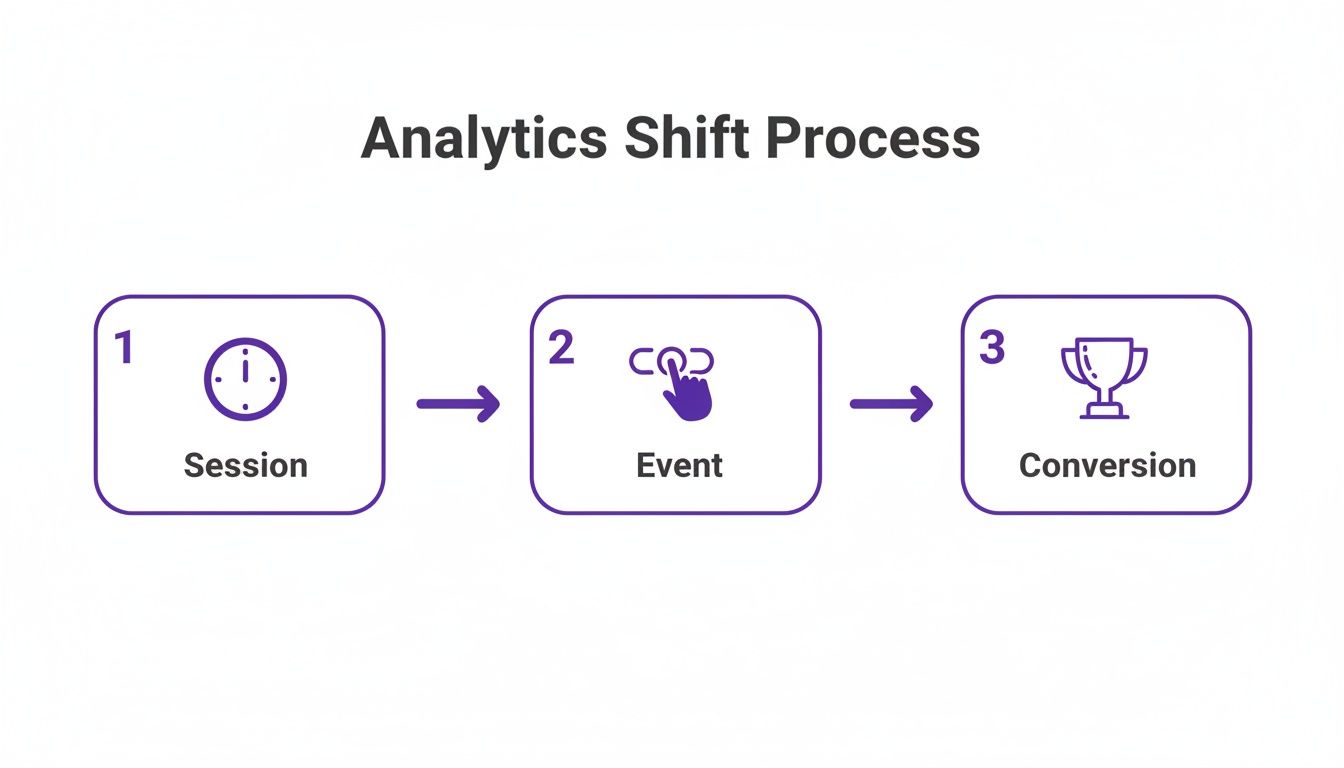
This progression from session to event to conversion is the foundation of modern analytics, giving you the power to measure the specific actions that truly matter.
Connecting Shopify to GA4
First things first: you can't track anything until Shopify and Google Analytics are properly introduced. Luckily, Shopify’s built-in integration makes this process incredibly simple.
Just head over to your Shopify admin, go to Online Store > Preferences, and find the "Google Analytics" section. All you have to do is paste your GA4 Measurement ID in the box. That one little step automatically activates GA4's enhanced e-commerce tracking, which is a massive head start.
Seriously, this integration saves a ton of time. It means critical events like view_item, add_to_cart, begin_checkout, and purchase start collecting data immediately, no custom coding required.
Confirming Your Purchase Conversion
For any store, the purchase event is the North Star. It's the ultimate conversion. The good news is that GA4 agrees and treats this one as a conversion by default. While you don't have to do anything to enable it, you absolutely need to verify it’s working correctly.
Your first stop is your GA4 account. Go to Admin > Data display > Events. You should see ‘purchase’ already listed there. Since it’s a default conversion, the toggle in the "Mark as conversion" column will already be switched on.
Pro Tip: Don't just take Google's word for it. The only way to be 100% sure your purchase tracking is solid is to place a test order yourself. Create a 100% discount code, go through your entire checkout process, and buy something. Then, you can use GA4's DebugView to watch the 'purchase' event fire in real-time. It's the ultimate peace of mind.
Setting Up Your Add To Cart Conversion
A sale is fantastic, but an add_to_cart event is a golden leading indicator. It signals genuine purchase intent and helps you see which products are capturing attention, even if a customer doesn't follow through right away.
Because the Shopify integration already sends this event data, your only job is to tell GA4 that you consider it a conversion. It's a two-click process:
- In your GA4 property, navigate to Admin > Data display > Events.
- Scan the list of event names until you find add_to_cart.
- Just flick the switch in the "Mark as conversion" column to the on position.
That's literally all there is to it. GA4 will now treat every 'add_to_cart' event as a conversion, letting you slice and dice your reports to see which campaigns and channels are best at getting people to take that crucial next step.
Tracking Newsletter Signups
Building an email list is a non-negotiable for long-term growth and customer loyalty. By tracking newsletter signups as a conversion, you can measure how effectively your site is turning visitors into leads. This one isn't automatic like the e-commerce events, so it usually needs a little custom setup.
The most straightforward way to track this is if your newsletter form sends users to a dedicated "thank-you" page after a successful signup. If it does, you're in luck.
You can easily create a new conversion based on visits to that confirmation page:
- Go to Admin > Data display > Events and click Create event.
- Give your new event a clear name, like newsletter_signup.
- Under "Matching conditions," set the first condition as
event_nameequalspage_view. - Then, add a second condition:
page_locationcontains/thank-you(or whatever the unique slug of your thank-you page URL is).
After you save this, you'll have to play the waiting game. The new event can take up to 24 hours to appear in your main events list. Once it shows up, just mark it as a conversion the same way you did for add_to_cart.
By setting up these essential Google Analytics goals (or as GA4 calls them, conversions), you arm yourself with the data to see the whole customer journey. Now you can measure not just the final sale, but every critical milestone along the way.
Testing and Validating Your New Conversion Events
Alright, you’ve done the hard work of setting up your conversion events. That’s a huge step, but don't pop the champagne just yet. The next part is absolutely critical: making sure it all actually works.
I can't stress this enough: making decisions on bad data is often worse than having no data at all. Think of it like a ship captain relying on a broken compass. You need to be 100% confident your tracking is accurate before you start steering your marketing strategy with it.
Luckily, GA4 has the perfect tool for the job.
Meet Your New Best Friend: GA4 DebugView
Say hello to DebugView. This is a real-time report tucked away in your GA4 Admin panel, and it’s about to become your favorite troubleshooting tool. It gives you a live feed of every single event firing from your browser as you navigate your site. No more waiting around!
Getting started is simple. The easiest method is to install the official Google Analytics Debugger Chrome extension. Once it's added to your browser, just click the icon to switch it on for your Shopify store. From that moment on, your actions will stream directly into DebugView.
This tool is a game-changer. It completely eliminates the guesswork and the typical 24-48 hour processing delay you see in standard reports. You get instant feedback.
Put on Your Customer Hat and Test Everything
Now for the fun part. Open up DebugView in one window and your Shopify store in another. It's time to become your own customer. You’re going to walk through the exact user flows you just set up to track. This is how you confirm your Google Analytics goals are working perfectly.
Here’s a simple testing plan I use all the time:
- Add an item to the cart. Find a product and click your "Add to Cart" button. Glance over at DebugView. You should see the
add_to_cartevent appear almost instantly. If you've marked it as a conversion, it'll have a little green flag next to it. - Start the checkout process. Now, head to the checkout. As soon as that page loads, the
begin_checkoutevent should pop up in your live feed. - Make a test purchase. Use a 100% discount code or your payment gateway's test mode to complete a full transaction. The moment you hit that thank-you page, you should see the big one: the
purchaseevent.
Don't just stop at seeing the event name. Click on each one in the DebugView timeline. For your purchase event, you should see all those valuable parameters you set up, like transaction_id, value, and currency. This is how you confirm you're capturing the context, not just the count.
By walking through a real customer journey, you spot the tiny hitches before they become massive data disasters. If an event doesn't fire when you expect it to, you know precisely where in the funnel things went wrong.
This hands-on validation isn't optional. Seriously. Taking ten minutes to do this now will save you from weeks of confusion and misguided decisions based on faulty reports later on. It’s the final step to building a data foundation you can actually trust to grow your business.
Turning Your GA4 Data Into Actionable Insights
Alright, you’ve got accurate data flowing into your GA4 property. The setup grind is over, and now the fun part begins: turning all those numbers into real, tangible growth for your store. This is where tracking conversions (what we used to call Google Analytics goals) starts to pay off.
Your GA4 reports are telling you a story about your customers. The trick is learning to read between the lines. The most powerful insights don't just come from seeing what people do, but from understanding where they stop doing it. This is how you shift from simply observing to making strategic, revenue-boosting changes.
Pinpointing Leaks in Your Sales Funnel
One of the best tools for this job is GA4’s Funnel exploration report. Seriously, this report is a goldmine. It gives you a clear, visual map of the exact path shoppers take to make a purchase and—more importantly—shows you exactly where they're bailing.
Are people adding products to their cart but never making it to the checkout page? You’ve got a cart abandonment problem. Or maybe they start checking out but never hit "Complete Purchase." That could signal a confusing form or a problem with your payment options.
You can build a funnel with specific steps like view_item → add_to_cart → begin_checkout → purchase. This lets you put hard numbers on those drop-offs. Realizing that 70% of users who start the checkout process disappear is a massive red flag. That kind of data gives you a powerful reason to simplify your forms or add more payment gateways.
Understanding your GA4 data is what helps you spot these opportunities, but the real goal is to boost your store's performance. This is where mastering the importance of Conversion Rate Optimisation in marketing is non-negotiable for turning those insights into actual sales.
By analyzing your funnel, you stop guessing and start diagnosing. You can see the exact friction points in your customer journey, giving you a clear roadmap for what to fix first for the biggest impact.
This data-first approach is so much more effective than just throwing random changes at the wall and hoping something sticks. It lets you focus your time and money where it will actually make a difference.
From Baselines to SMART Business Goals
Once you have a handle on your current performance, you can establish your baseline conversion rates. Maybe you discover your store's overall conversion rate is 1.8%, or that your add_to_cart rate on mobile is 4.5%. These numbers aren't good or bad on their own—they’re just your starting point.
Now, you can set real goals. I’m talking about SMART goals: specific, measurable, achievable, relevant, and time-bound. Vague ideas like "increase sales" are pretty useless. A powerful, actionable goal sounds more like this: "Increase our mobile add_to_cart conversion rate from 4.5% to 5.5% by the end of next quarter."
See the difference? That specific target gives your team a clear mission. It forces you to think about how you'll get that 1% lift. Are you going to A/B test a new product page layout? Or maybe work on improving the mobile image gallery?
This is how data-driven agencies operate. We’re constantly turning GA4 insights into SMART goals with hard numbers tied to conversions, sessions, and revenue. A typical goal might be to "increase e-commerce purchase conversions by 15% and overall sessions by 30% by Q4."
For clients we move from Etsy to Shopify, we take it a step further. We translate those Google Analytics goals into dollars and cents. An extra 75 orders a month at a $70 average order value means $5,250 in additional monthly revenue. That creates a clear and compelling ROI for investing in optimization.
A small lift in your conversion rate isn't just a number on a dashboard; it translates directly into thousands of dollars in your pocket. This is how a properly configured analytics setup becomes one of the most profitable tools you have.
Putting Your Data to Work: The Reporting and Optimization Loop
Alright, you've got your tracking in place and your conversion data is flowing into GA4. That’s a huge step, but the job's not done. Now the fun part begins: turning that data into actual growth for your store.
This is all about creating a continuous cycle of reporting, finding insights, and making smart changes. We want to move from just collecting data to actively using it to make your Shopify store better every single month.
The heart of this operation is the "Explore" section in GA4. Think of it as your personal analytics sandbox. While the standard reports are fine, the real magic happens when you build custom reports that answer the specific questions you have about your business. This is how you'll connect the dots between your marketing spend and your sales figures.
Building Reports That Actually Tell You What to Do
The best way to start is by building reports that compare performance head-to-head. This helps you understand not just what's happening, but why it's happening. The goal here is to get clear signals on where to focus your energy and marketing dollars for the biggest impact.
For any Shopify store, I'd recommend starting with a couple of essential custom reports:
- Traffic Source Conversion Rate: This is where you put your channels in the ring together. Is your organic search traffic converting better than your paid ads on Instagram? This report shows you which sources are sending you ready-to-buy customers versus people who are just window shopping.
- Device Performance Breakdown: Line up your conversion rates for desktop, mobile, and tablet. It’s pretty common to see something like 80% of your traffic coming from mobile, but the conversion rate is half of what you see on desktop. If that’s the case, you’ve just found a massive opportunity to improve your mobile checkout process.
Reports like these cut through the noise and give you a clear to-do list. They help you answer crucial questions like, "Should I really be spending more on this ad campaign?" or "Is my clunky mobile site secretly killing my sales?"
Don't underestimate the power of small wins. Boosting your conversion rate from 1.5% to 2.0% might not sound like much, but that's a 33% jump in performance. For a store doing 10,000 sessions a month with a $70 average order, that tiny improvement adds up to an extra $3,500 in revenue every single month.
Test, Measure, Repeat
Once you've got some insights, it's time to start experimenting. This is the "optimization" piece of the puzzle. A/B testing isn't some complex process reserved for giant corporations; it's something every Shopify owner can and should be doing.
You can test just about anything, but I always suggest starting with the friction points you uncovered in your reports.
- Try out a new layout for your product pages.
- Test different button colors or a new call-to-action (think "Buy Now" vs. "Add to Bag").
- Simplify your checkout process by getting rid of a few optional fields.
After you run an experiment, you go right back to your GA4 conversion data to see what happened. Did that new button color really lead to a higher add_to_cart rate? Did the simpler form actually increase your purchase conversion rate?
This creates a powerful feedback loop where every change you make is measured, and every decision is driven by real performance data, not just a gut feeling. This cycle of measuring, learning, and improving is how you turn your Google Analytics goals into real, sustainable growth.
A Few Common Questions About Shopify and GA4
Diving into analytics for your Shopify store always brings up a few questions. It’s totally normal. After all, you’re trying to connect the dots between clicks and actual sales. Let's walk through some of the head-scratchers we see all the time.
Can I Track Custom Actions as Conversions?
You bet! This is where Google Analytics 4 really shines. Think about the unique things people do on your site that aren't a direct sale but signal strong interest. Maybe it's downloading a sizing guide, viewing a specific lookbook, or using a "try-on" feature.
You can set up a custom event for just about any of these interactions. Once that's done, just pop over to the Admin > Conversions area in your GA4 property and flip the switch to mark it as a conversion. It’s a brilliant way to measure how people are engaging with the specific features you’ve built to guide them toward a purchase.
Why Do My Shopify Sales and GA4 Data Never Match Perfectly?
Ah, the million-dollar question. It's incredibly rare for your Shopify sales numbers and GA4 conversion data to line up perfectly, and there are a few very normal reasons for this:
- Ad Blockers: A good chunk of users run software that blocks tracking scripts, meaning GA4 never even sees their purchase.
- Different Attribution: Shopify tells you a sale happened. GA4 tries to tell you why it happened by looking at the entire customer journey, which can lead to different reporting.
- The Quick Exit: Someone might buy something and close the "thank you" page so fast that the GA4 script doesn't have time to fire. It happens more than you'd think.
The goal isn't a perfect one-to-one match. Instead, focus on the trends and bigger picture insights GA4 gives you. Is your conversion rate trending up? Where are your best customers coming from? That’s the valuable stuff.
How Much Data Do I Really Need Before Making a Change?
I know how tempting it is to see one good day (or one bad day) and immediately want to change your entire strategy. But try to resist that urge.
For most stores with regular traffic, you'll want to gather at least a few weeks' worth of data—maybe even a full month—before making any significant decisions. This gives you a solid baseline and helps you see real patterns instead of just reacting to random daily fluctuations. Patience here pays off.
Ready to turn these insights into a high-performing Shopify store that actually converts? At Wand Websites, we live and breathe e-commerce optimization. We build sites designed for real growth, handling all the technical details so you can get back to what you do best. Learn more about our conversion-focused website builds.
